



Getting Started
Start with the public IX-API sandbox. It is a test implementation of IX-API that anyone can use, so you need no account at an exchange. You need an MCP client, such as Claude Code, and an IX-API key and secret, which you create on the sandbox’s front page. There is nothing to install.
Get a sandbox key and secret
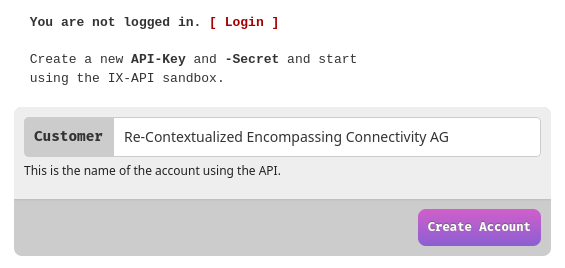
Open sandbox.ix-api.net . Under Getting Started, keep the suggested Customer name or type your own, and press Create Account. The page then shows your account, an API key and a secret. Keep the key and the secret at hand: you sign in with them.
Add it to Claude Code
claude mcp add --transport http ix-api https://sandbox.ix-api.net/agents/mcp
claude mcp login ix-api
The first command adds the sandbox’s MCP server under the name ix-api. The
second opens your browser to sign in. You can also sign in from inside Claude
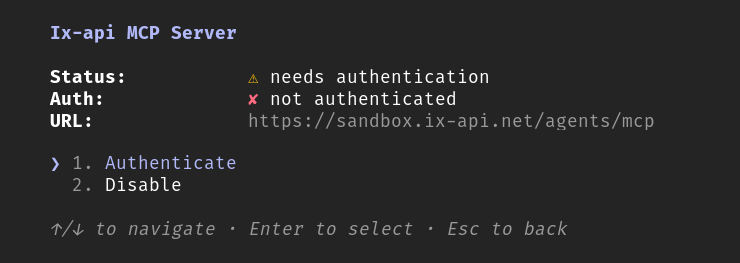
Code: run /mcp, pick ix-api and choose Authenticate.
Add it to Claude Desktop or claude.ai
In claude.ai or Claude Desktop, add a custom connector under Settings and give
it the same URL, https://sandbox.ix-api.net/agents/mcp. Claude asks you to
connect the first time you use it.
Add it to GitHub Copilot CLI
copilot mcp add --transport http ix-api https://sandbox.ix-api.net/agents/mcp
Then start copilot and run /mcp auth ix-api. It opens your browser to sign
in.
Add it to Codex CLI
codex mcp add ix-api --url https://sandbox.ix-api.net/agents/mcp
Codex sees that the server uses OAuth and opens your browser to sign in right
away. To sign in again later, run codex mcp login ix-api.
Add it to another MCP client
Any client that speaks MCP over HTTP with OAuth works. The server registers clients itself, and also accepts a client id that is the URL of a client metadata document. Your client needs no client secret of its own. You sign in with your IX-API key and secret, as below.
Sign in
Your browser opens a page served by the MCP server. The page names the application that is asking and the IX-API it will act on. Check both, then enter your IX-API key and secret.
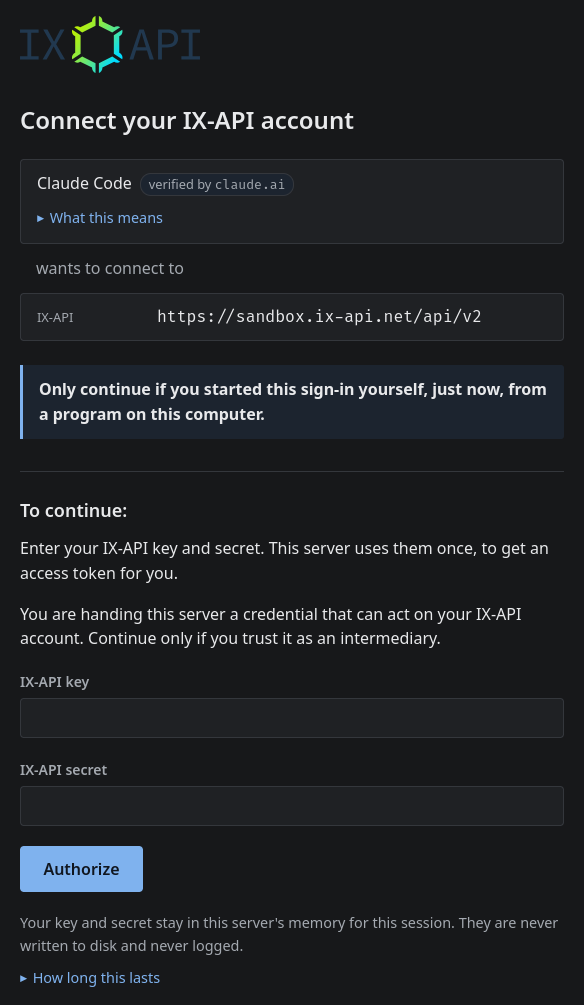
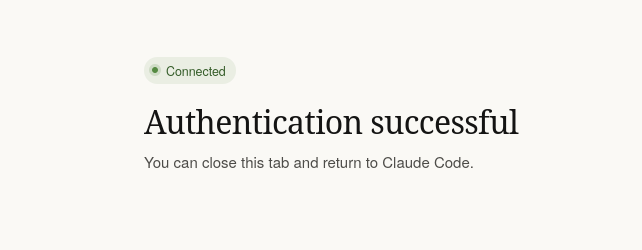
Press Authorize. The server sends your browser back to your client. Claude Code then shows this page, and you can close the tab:
Back in Claude Code, /mcp reports the connection:

The server runs one login with those credentials and keeps the session in memory. A session ends after 12 hours idle, after 7 days, when the client revokes it, or when the server restarts. After that you sign in again.
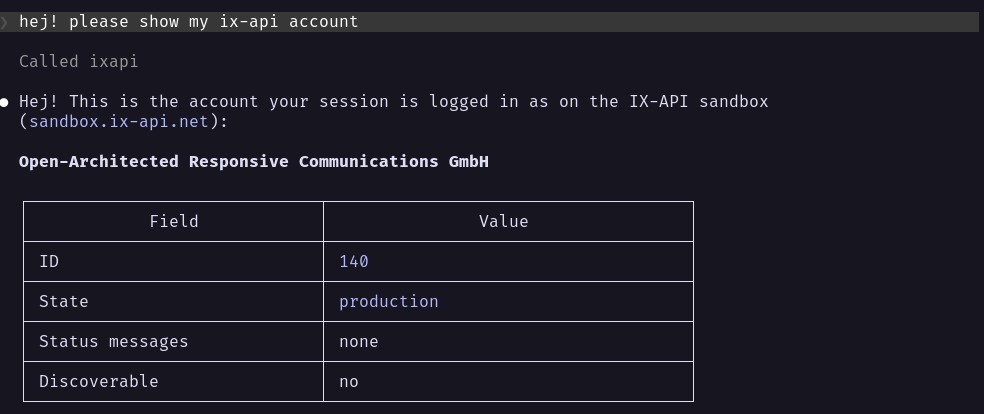
Try the first prompt
Ask for your account, in your own words:
Show my IX-API account.
An answer naming your account means the whole path works: your client, the server, and the exchange. On the sandbox, it is the account you created there.
Connect your own exchange
When you are ready for your real account, ask your exchange for the address of its IX-API MCP Server. Add it the same way, under a name of your own, and sign in with the IX-API key and secret that exchange issued you:
claude mcp add --transport http my-exchange https://mcp.example-exchange.net/mcp
claude mcp login my-exchange
Next: Using IX-API MCP Server .